
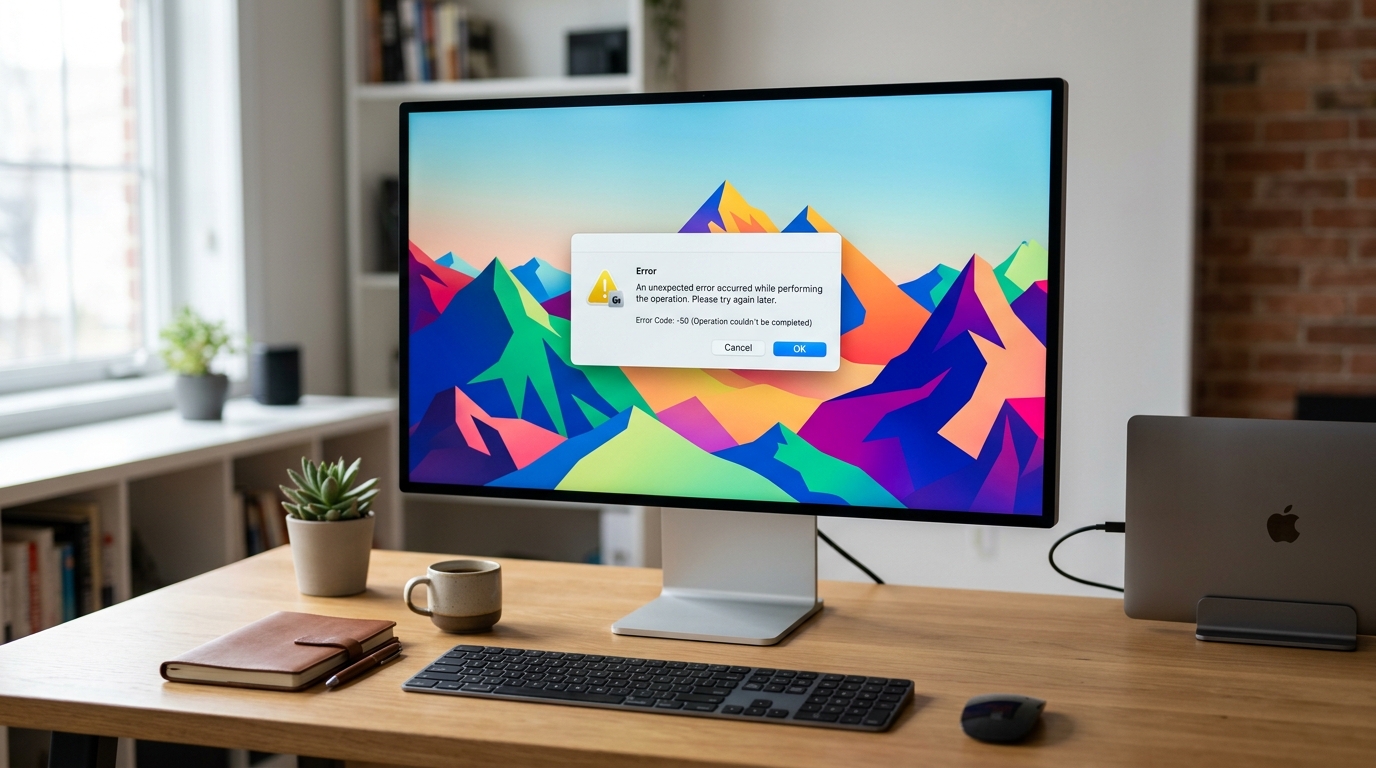
Encountering an error code on your Mac can be a frustrating experience, especially when it disrupts your workflow or prevents you from accessing important files or applications. One such issue that many users encounter is Mac Error Code 102. This error often appears unexpectedly and leaves users wondering exactly what went wrong and how to fix it.
In this comprehensive guide, we will explore exactly what Mac Error Code 102 means, what its primary causes are, and provide step-by-step solutions to fix it without risking your personal data. By following this troubleshooting guide, you will be able to resolve the error and get your Mac back to its normal, smooth operation.
What is Mac Error Code 102?
Mac Error Code 102 is generally a system-level error that occurs when macOS encounters an issue while trying to launch an application, open a file, or perform a specific system process. When this error occurs, you might see a pop-up dialog box that reads something like, "The application cannot be opened because of a Mac Error Code 102" or "An unexpected error occurred (Error code 102)."
Unlike some other macOS errors that are specifically tied to network issues or hardware failures, Error Code 102 is primarily related to software conflicts, corrupted preference files, or permissions issues within the operating system itself. Because it is a software-level error, it is almost always fixable without needing to visit an Apple Store or replace hardware components.
Understanding the context in which the error appears is the first step in troubleshooting. Did it happen right after a macOS update? Were you trying to open a specific application, or did it occur randomly during startup? Pinpointing the exact moment the error triggered will help you apply the most effective solution from the steps outlined below.
Common Causes of Error Code 102
Before diving into the fixes, it is helpful to understand what might be causing Error Code 102 on your machine. Several different underlying issues can trigger this specific error message:
- Corrupted Application Preferences: Applications store their settings in preference (.plist) files. If one of these files becomes corrupted, the application may fail to launch and throw Error 102.
- macOS Update Glitches: Sometimes, during a macOS update, certain system files do not install correctly, leading to compatibility issues and system errors.
- Permissions Issues: macOS relies on strict file permissions to keep the system secure. If the permissions for a specific application or system folder get mixed up, the system may block access, resulting in this error.
- Incompatible Background Processes: Third-party background applications, such as antivirus software or system optimizers, can sometimes interfere with macOS processes and trigger errors.
- Corrupted Cache Files: System and application caches are designed to speed up performance, but when they become bloated or corrupted, they can cause unexpected behavior and launch failures.
Step 1: Restart Your Mac
It might sound too simple to be true, but restarting your Mac is one of the most effective troubleshooting steps for resolving unexpected system errors, including Error Code 102.
When you restart your computer, macOS clears out the temporary memory (RAM), stops all background processes, and forces the system to reload its core components from scratch. This simple action can often clear up minor software conflicts and corrupted cache files that might be causing the issue.
- Save any open work and close your applications.
- Click on the Apple menu in the top-left corner of your screen.
- Select Restart... from the drop-down menu.
- Wait for your Mac to completely shut down and boot back up.
- Once you are back on the desktop, try to recreate the action that caused Error 102 to see if it has been resolved.
If the error persists after a restart, proceed to the next troubleshooting step.
Step 2: Update macOS and Applications
Running outdated software is a common cause of compatibility issues and system errors. Apple regularly releases updates for macOS to patch bugs, improve security, and enhance system stability. Similarly, app developers release updates to ensure their software remains compatible with the latest macOS versions.
To check for macOS updates:
- Open the Apple menu and select System Settings (or System Preferences on older macOS versions).
- Click on General in the sidebar, then select Software Update.
- Wait for your Mac to check for available updates.
- If an update is available, click Update Now and follow the on-screen prompts to install it.
Additionally, you should check for updates for the specific application that triggered the error (if applicable). Open the App Store and click on the Updates tab, or check the application's own settings menu for an update option.
Step 3: Boot into Safe Mode
Safe Mode is a built-in diagnostic mode in macOS that helps isolate software issues. When you boot your Mac in Safe Mode, it performs several important checks and prevents certain software, such as startup items and third-party kernel extensions, from loading.
Safe Mode also automatically clears out system caches, which can often resolve underlying corruption that might be causing Mac Error Code 102.
For Macs with Apple Silicon (M1/M2/M3 chips):
- Shut down your Mac completely.
- Press and hold the Power button until you see the "Loading startup options" screen.
- Select your main startup disk.
- Press and hold the Shift key, then click Continue in Safe Mode.
For Macs with Intel Processors:
- Restart your Mac and immediately press and hold the Shift key as it boots up.
- Release the Shift key when you see the Apple logo and login screen.
- Log into your account (you may need to log in twice).
Once you are in Safe Mode, try to trigger the error again. If the error does not occur in Safe Mode, restart your Mac normally. The process of booting into Safe Mode and clearing the caches might have permanently resolved the issue.
Step 4: Delete Application Preferences and Caches
If Mac Error Code 102 only occurs when you try to open a specific application, the problem is likely isolated to that app's preference files or cache data. Corrupted .plist files can prevent an application from launching properly.
To delete the corrupted preference files:
- Ensure the problematic application is completely closed.
- Open Finder.
- Click on the Go menu at the top of the screen, hold down the Option key, and click on Library when it appears in the list.
- In the Library folder, navigate to the Preferences folder.
- Look for a file named something like
com.developername.appname.plist(for example,com.apple.safari.plist) and drag it to the Trash. - Next, navigate back to the main Library folder and open the Caches folder.
- Find the folder associated with the problematic application and drag it to the Trash as well.
- Empty the Trash and restart your Mac.
When you launch the application again, it will generate fresh, uncorrupted preference and cache files, which should resolve Error 102.
Step 5: Run Disk Utility First Aid
macOS relies on a complex file system to manage data. If the file system directory or specific file permissions become corrupted, it can lead to various system errors, including Mac Error Code 102. Disk Utility includes a "First Aid" feature that checks the file system and repairs minor errors automatically.
To run Disk Utility First Aid:
- Open Launchpad or Spotlight Search and open Disk Utility.
- In the sidebar, select your main startup disk (usually named "Macintosh HD").
- Click the First Aid button located at the top of the Disk Utility window.
- Click Run to confirm.
- Wait for the process to complete. This may take several minutes, and your Mac may become unresponsive during the check.
If Disk Utility finds and repairs errors, restart your Mac and check if Error 102 has been resolved. If Disk Utility reports errors that it cannot repair, you may need to boot into macOS Recovery Mode to run First Aid from there.
Step 6: Reinstall the Problematic Application
If you have cleared the application's preferences and caches, updated macOS, and run Disk Utility, but you are still encountering Error Code 102 when launching a specific app, the application itself might be fundamentally corrupted. In this case, a clean reinstallation is the best approach.
To perform a clean reinstall:
- Open the Applications folder in Finder.
- Locate the problematic application and drag it to the Trash.
- Empty the Trash to remove the application files from your system.
- Visit the Mac App Store or the developer's official website to download the latest version of the application.
- Install the application and attempt to launch it again.
A fresh installation ensures that all necessary application files are intact and properly configured for your current version of macOS.
When to Consider Reinstalling macOS
In rare cases where Mac Error Code 102 affects multiple applications or core system processes, and none of the troubleshooting steps above have worked, you may be dealing with deeper corruption within the macOS operating system itself.
At this stage, reinstalling macOS may be necessary. Reinstalling macOS over your existing installation generally preserves your personal files, user accounts, and installed applications, replacing only the core system files.
To reinstall macOS, you will need to boot into macOS Recovery Mode (the method varies depending on whether you have an Intel or Apple Silicon Mac) and select the "Reinstall macOS" option from the utilities menu. Follow the on-screen instructions carefully, and ensure your Mac is connected to a reliable power source and Wi-Fi network.
Conclusion
Mac Error Code 102 can be a disruptive issue, but it is rarely a sign of severe hardware failure. By methodically working through the troubleshooting steps outlined in this guide—from a simple restart and Safe Mode boot to clearing preferences and running Disk Utility—you can effectively isolate and resolve the underlying software conflict.
Remember to keep your macOS and applications regularly updated to minimize the risk of encountering compatibility issues and system errors in the future. If you continue to experience persistent errors that affect the usability of your machine despite trying all these solutions, it may be worth reaching out to Apple Support for advanced diagnostic assistance.