Apple Support 247 is an independent publication — not affiliated with Apple Inc.

A laptop open on a tidy wooden desk in soft daylight
Independent publication — not affiliated with Apple Inc.

Clear Answers for Your Apple Devices.

Independent troubleshooting guides, error explanations and practical how-to resources for Mac, iPhone and the Apple ecosystem.

A person opening a laptop lid at a desk in the morning

Mac won't start?

A Mac that appears dead often has a straightforward explanation. Work through these checks before assuming hardware failure.

1

Check power delivery

Try a different cable, adapter and wall outlet. A fully discharged battery may need 30 minutes before the Mac can start.

2

Remove all accessories

Disconnect every hub, drive, display and USB device. Retry with only the charger attached.

3

Look for signs of life

Listen for fans, feel for vibration, check keyboard backlight in a dark room, try an external display.

4

Check brightness

A Mac set to minimum brightness in a bright room looks exactly like a machine that never started. Press the brightness-up key several times.

Safari connection lab

Secure connection failures, ERR_CONNECTION_RESET and 403 errors all look like "Safari is broken" — but the cause is usually something specific. Work through this decision tree.

1

Is the error on one site only?

Load two other https:// sites. If they work, the problem is with the specific site's certificate, not your device.

2

Does it fail on your phone too?

Switch to mobile data and try the same URL. If it fails there too, the site itself is the issue.

3

Try a private browsing window

Extensions and cached data are bypassed in private mode. If the page loads there, a Safari setting is involved.

4

Check date and time

An incorrect Mac clock causes TLS certificates to appear expired. Confirm System Settings > General > Date & Time is set automatically.

A laptop on a plain background with a wireless mouse beside it

Understanding Mac errors

Every Mac error belongs to a family. The number tells you the category of failure — the context tells you the cause.

File & Copy Errors

Errors during Finder drag-and-drop, external drive copies, and large file transfers.

Permission Errors

Access denied when reading, writing, renaming or deleting files and folders.

Disk & Volume Errors

Failures affecting an entire drive partition — check disk health first.

Installer Errors

macOS or app installations that fail, stall or produce error codes.

Server & Network Errors

Connections to network shares, websites and Apple services that fail.

App Errors

Error codes that appear inside a single application rather than in Finder.

Before you troubleshoot

Back up your important files before making changes.

Some troubleshooting steps — reinstalling macOS, restoring an iPhone, reformatting a drive — can erase data. Our guides show warnings before these steps, but the safest approach is to verify your backup before you start.

  • Consider whether your important files have a current copy somewhere other than the device you're troubleshooting.
  • Time Machine can back up your Mac to an external drive. Verify that backups are current before major steps.
  • iCloud can back up an iPhone, but check that the last backup completed recently.
Backup and recovery guides
An external portable hard drive connected to a laptop
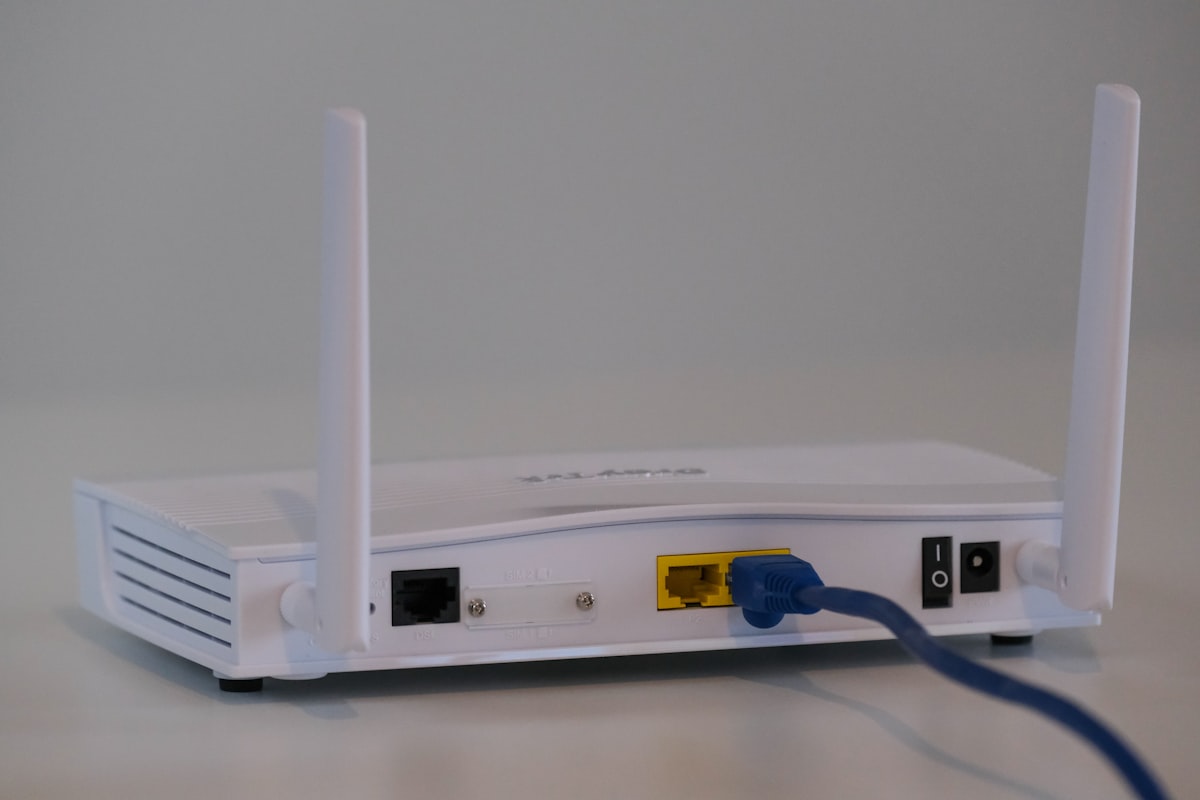
A home Wi-Fi router with status lights on a shelf

Internet and networking

Network problems wear many disguises. A page that won't load may be a DNS issue, a server issue, your router, or your browser — knowing how to separate them makes troubleshooting faster.

Recovery and installation

macOS Recovery and Internet Recovery are tools for when the normal startup process fails — not casual fixes to reach for immediately. Understanding what they do helps you use them safely.

macOS Recovery

Starts from a recovery environment on the Mac itself. Allows disk checks, reinstalling macOS and accessing startup options. Does not require an internet connection once started.

Internet Recovery

Downloads a recovery environment over the internet when the local recovery partition is unavailable. Requires a working network connection.

Installation failures

A failing macOS installation often relates to insufficient free space, an interrupted download, or a power interruption — not a hardware fault.

Full recovery guide
A laptop displaying an installation progress screen on a desk
A smartphone connected to a laptop with a charging cable

iPhone and device restore

iPhone restore errors almost always involve the USB connection, the cable, or the software version being installed — not a permanently damaged device. Before restoring, back up if you can.

The 247 troubleshooting method

A consistent approach that works whether you're fixing a Finder error or a Safari connection problem.

01

Identify the exact symptom

Write down the exact error message, number and the action that produced it.

02

Check if it's device-wide

Test the same operation on a different file, app or network to isolate the scope.

03

Preserve important data

Before any structural change, confirm your backup is current and verified.

04

Start with reversible changes

Restart, toggle settings, clear caches — changes you can undo without consequence.

05

Change one thing at a time

Testing multiple changes at once makes it impossible to know which one worked.

06

Document error messages

Screenshot or write down every message before dismissing it.

07

Escalate when hardware risk exists

Stop and get hands-on help if the symptom suggests physical damage or data loss risk.

Latest from the knowledge base

All articles
iPhone

Apple Error 4013: What It Means and What to Try

Error 4013 appears during an iPhone or iPad restore. Learn what causes this restore error, how to check your connection and hardware, and when to escalate to Apple Support.

May 20, 20267 min

Frequently asked questions

The 247 Fix

Practical Apple troubleshooting, weekly.

Clear, jargon-free guides for Mac, iPhone and the Apple ecosystem — delivered every week.

No spam. Unsubscribe any time. Apple Support 247 is an independent publication.